
Customize home page interface (6)
When it comes to implementation, you’ll definitely want to customize the look and feel of your homepage to match your brand, products, and user experience. In this article, we’ll explore ways to customize your homepage.

Customize home page interface (6)
Introduction
Bagisto is an open-source e-commerce platform built on Laravel and Vue.js. One of the most popular default themes is Velocity – a modern, lightweight interface that supports many features for an online store.
However, in a real-world implementation, you will certainly want to customize the homepage interface to suit your brand, products, and user experience. In this article, we will explore ways to edit the Velocity homepage on Bagisto.
1. How to Arrange Content Blocks in Theme Settings
Access https://[your_domain]/admin/settings/themes. Click “Sort Order” to arrange the order from smallest to largest.
The interface will look like this:

You can see a total of 12 rows, which correspond to the content blocks on your homepage as shown below.
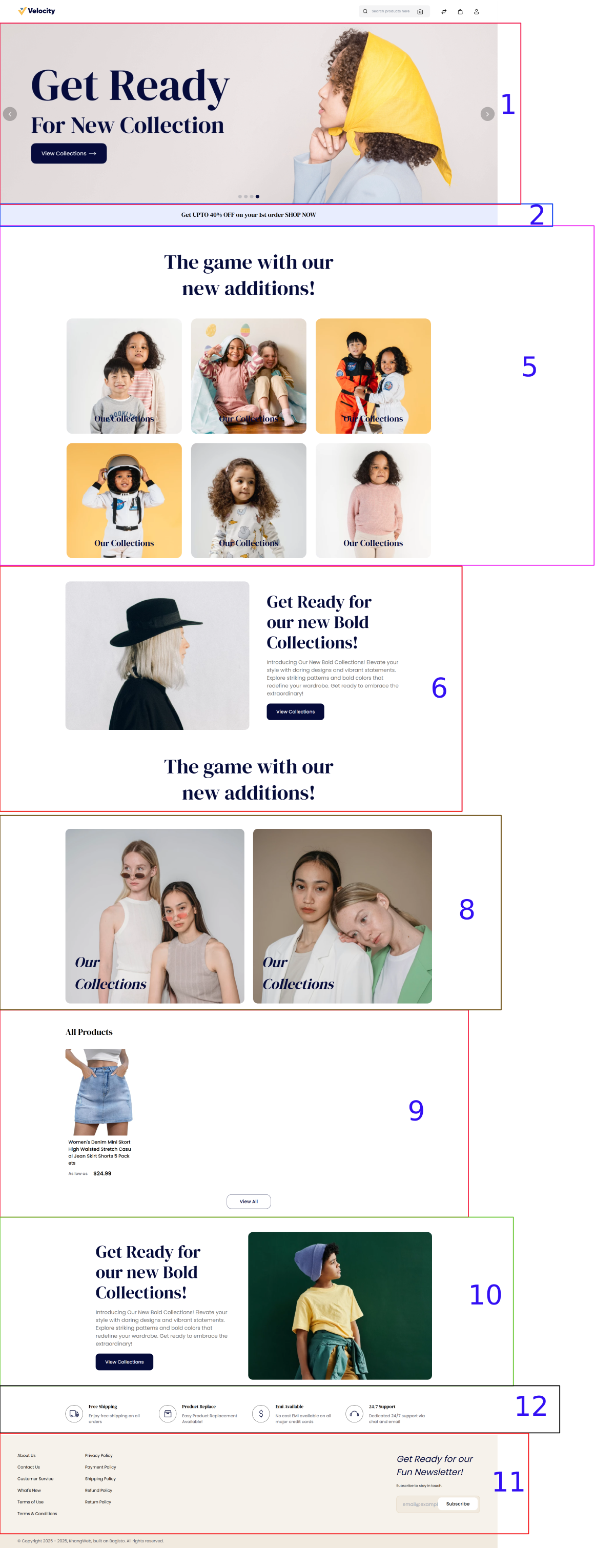
Do you notice anything unusual in the screenshot above? Yes, I'll explain:
- First - Blocks 3, 4, and 7 are missing: This is because we haven't created product categories and set up the products to appear on the homepage yet, so there is no data to display.
- Second - Block 12 is placed above block 11: This is because block 11 has a "type" of "footer_links". This type will always be placed last in the website layout.
2. Types in Velocity's Theme Settings
When you configure the Theme at /admin/settings/themes, each block on the homepage interface has its own Type. Correctly understanding each type will help you arrange content logically and optimize the customer experience.
Below are 6 important types:
🛍️ Product Carousel
- Purpose: To display a series of products in a horizontal sliding format (carousel).
- Use for: Homepage or landing pages; showing products based on criteria: Featured Products, New Arrivals, Discounts, Best Sellers, etc.
- Configuration: Select a category or manually enter product IDs; enter the block title; specify the number of products to display.
- Example: Similar to the "Today's Picks" or "Featured Products" sections that slide horizontally on Shopee or Lazada.
📂 Category Carousel
- Purpose: To display a series of product categories in a horizontal sliding format.
- Use for: Helping customers quickly access large product groups (e.g., Phones, Laptops, Fashion, Cosmetics, etc.).
- Configuration: Select a parent category; specify the number of subcategories to display.
- Example: The horizontal category slider on Tiki's homepage, helping customers quickly click on product groups they are interested in.
📝 Static Content
- Purpose: To insert fixed content (HTML, JavaScript, or text).
- Use for: Promotion banners; announcements; shop introduction; embedding third-party code (YouTube videos, Google Maps, etc.).
- Configuration: Enter text or HTML directly.
- Example: A text block "Free nationwide shipping – 7-day returns" right on the homepage.
🖼️ Image Carousel
- Purpose: To display one or more images in a slider format, with auto-play functionality.
- Use for: Large promotional banners at the top of the page; a collection of images introducing products or services.
- Configuration: Upload images (standard size: 1920x600px); enter accompanying links (if needed); choose the display order; choose whether to auto-play.
- Example: The main banner slider at the top of the homepage for most e-commerce websites.
🔗 Footer Links
- Purpose: To create groups of links in the footer.
- Use for: Quick links to static pages: Privacy Policy, Terms of Service, Contact, About Us, etc.
- Configuration: Enter the title of the link group (e.g., "About Us"); enter the list of child links.
- Example: Shopee's footer has sections like: "Customer Support," "About Us," "Sales Policy," etc.
⚙️ Service Content
- Purpose: To display services or commitments in the footer.
- Use for: Presenting a shop's commitments: Fast delivery, 24/7 support, Secure payment, etc.
- Configuration: Enter the service title; a short description or an icon for illustration.
- Example: The "Our Services" section in the footer: free shipping, easy returns, 24/7 customer care.
✅ Thus, each type in Theme Settings helps you manage a different content block on the homepage.
- If you want to show products → choose Product Carousel
- If you want to show categories → choose Category Carousel
- If you want to show image banners → choose Image Carousel
- If you want to add text/HTML → choose Static Content
- If you want to manage footer links → choose Footer Links or Service Content
3. Changing the Logo and Favicon for the Website
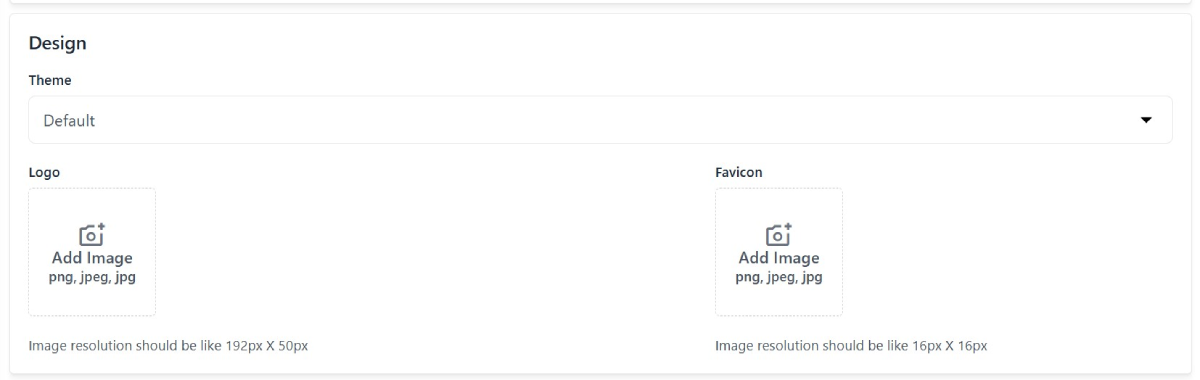
Access https://[your_website]/admin/settings/channels/edit/1.
Find the Design block and proceed to upload the logo and favicon as required:
So, we have learned how to customize the homepage interface. In the next part, we will get our hands on some practical exercises!
Leave a Comment